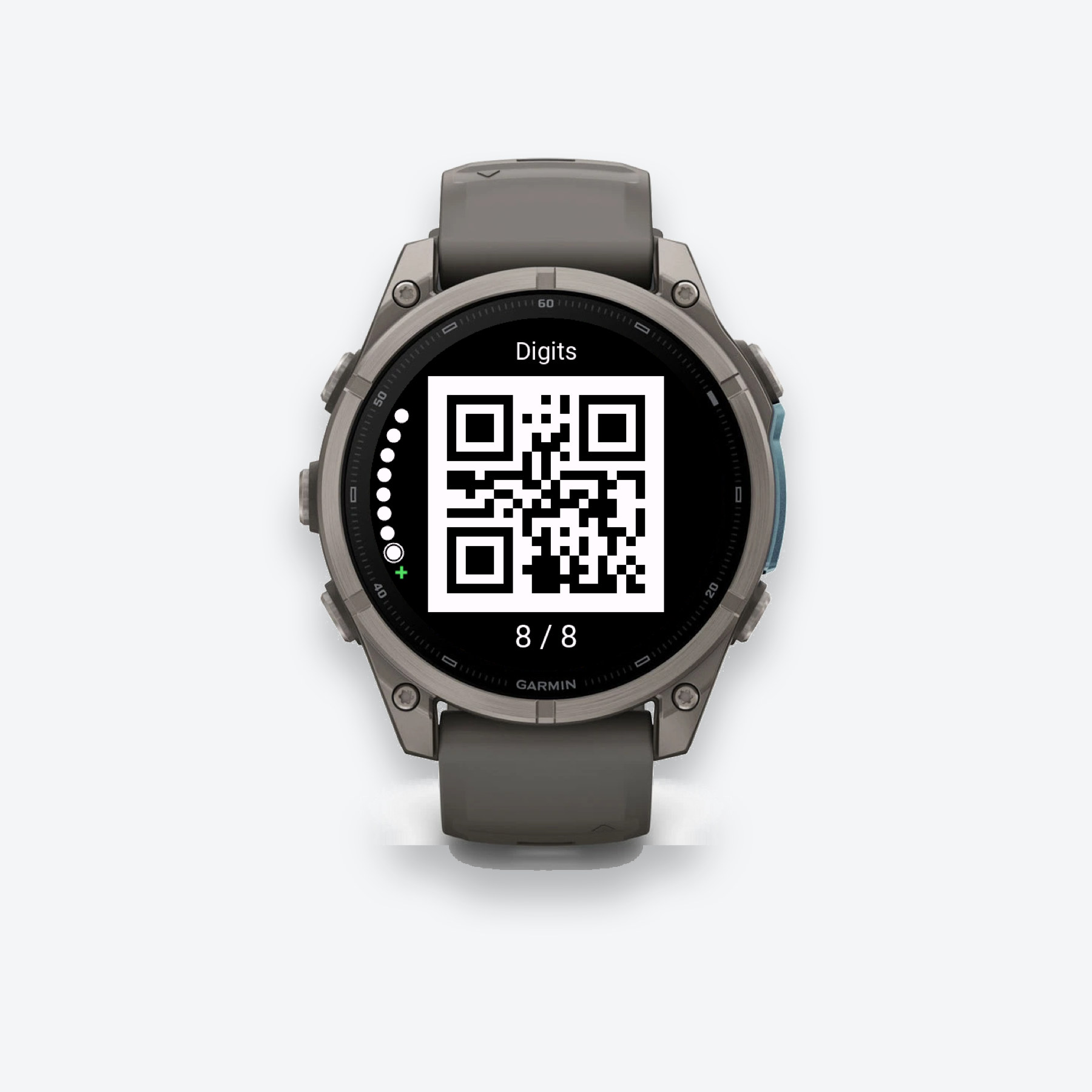
MADE FOR YOUR GARMIN

Your cards.
On your wrist.

Add and edit cards in the Connect IQ app on your phone. With Gallery Pro, you can also edit directly on a supported watch. Prefer scanning and organizing cards on your phone? Explore WristPass.

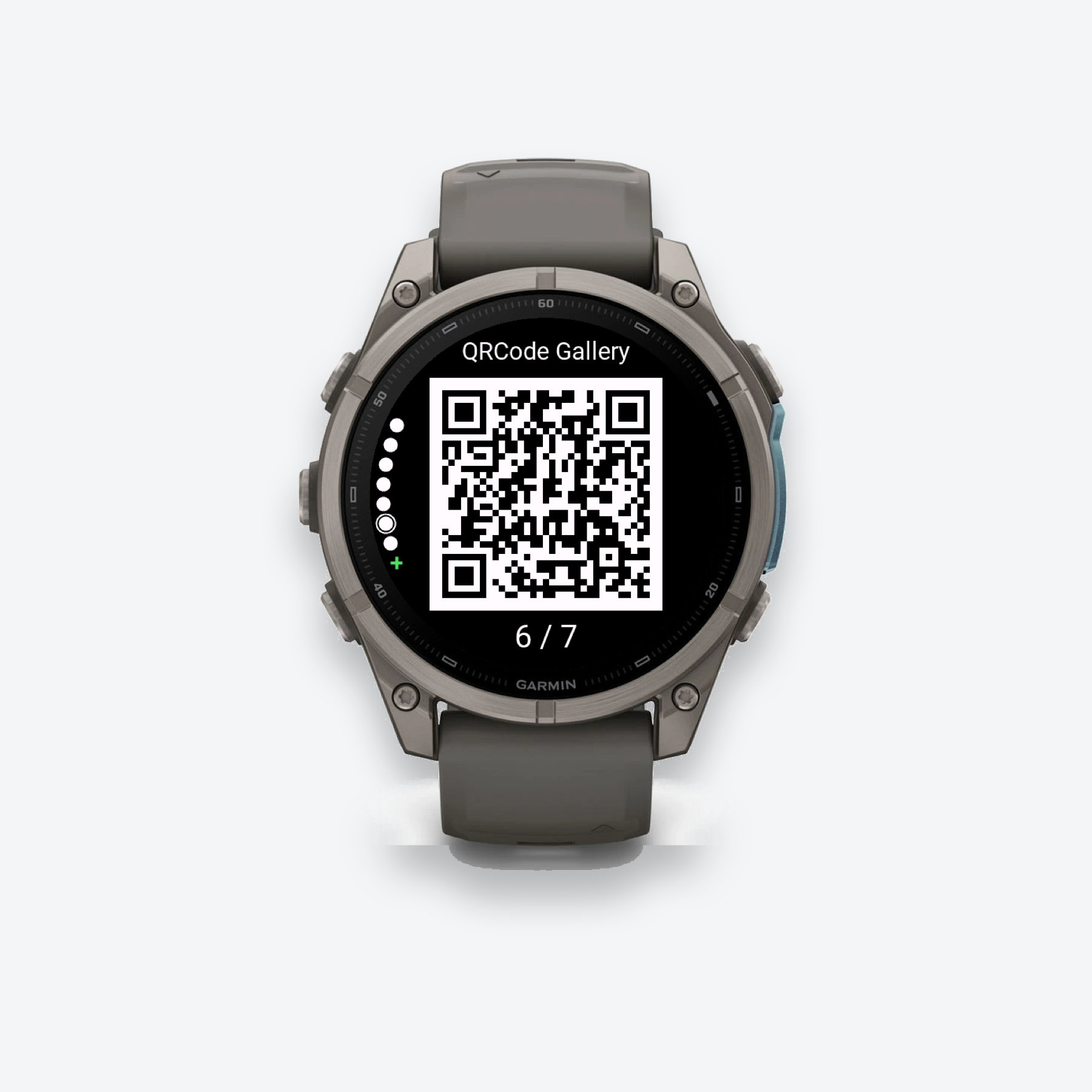
Your saved cards, available offline on your watch.

01 / OFFLINE

Ready when you are.

Your saved cards stay available without an internet connection.

02 / QRCODE GALLERY

Edit in Connect IQ.

Add or update card details in the Connect IQ app settings on your phone.

03 / WRISTPASS

Let your phone organize.

Scan cards, sort them into folders, and sync them to the WristPass watch app.

ADDING CARDS TO QRCODE GALLERY

Add & edit cards, two ways.

Use your phone keyboard in Connect IQ, or enter details directly on your watch with Gallery Pro.

GALLERY FREE & PRO

Edit in Connect IQ.

Add new cards or change existing ones using your phone keyboard.

  1. Open the Garmin Connect IQ app on your phone. Select QRCode Gallery, then open its settings.
  2. Choose a card slot. Enter or update its name, code type, and original code content.
  3. Save your settings and let the changes sync to your connected watch.

Changes not showing on your watch? Garmin phone-to-watch connection issues can prevent settings from syncing. Check the connection and try again, or use Gallery Pro’s on-watch editor on a supported device.

GALLERY PRO · SUPPORTED WATCHES

Edit on your watch.

Add a card right on your wrist. No phone sync needed.

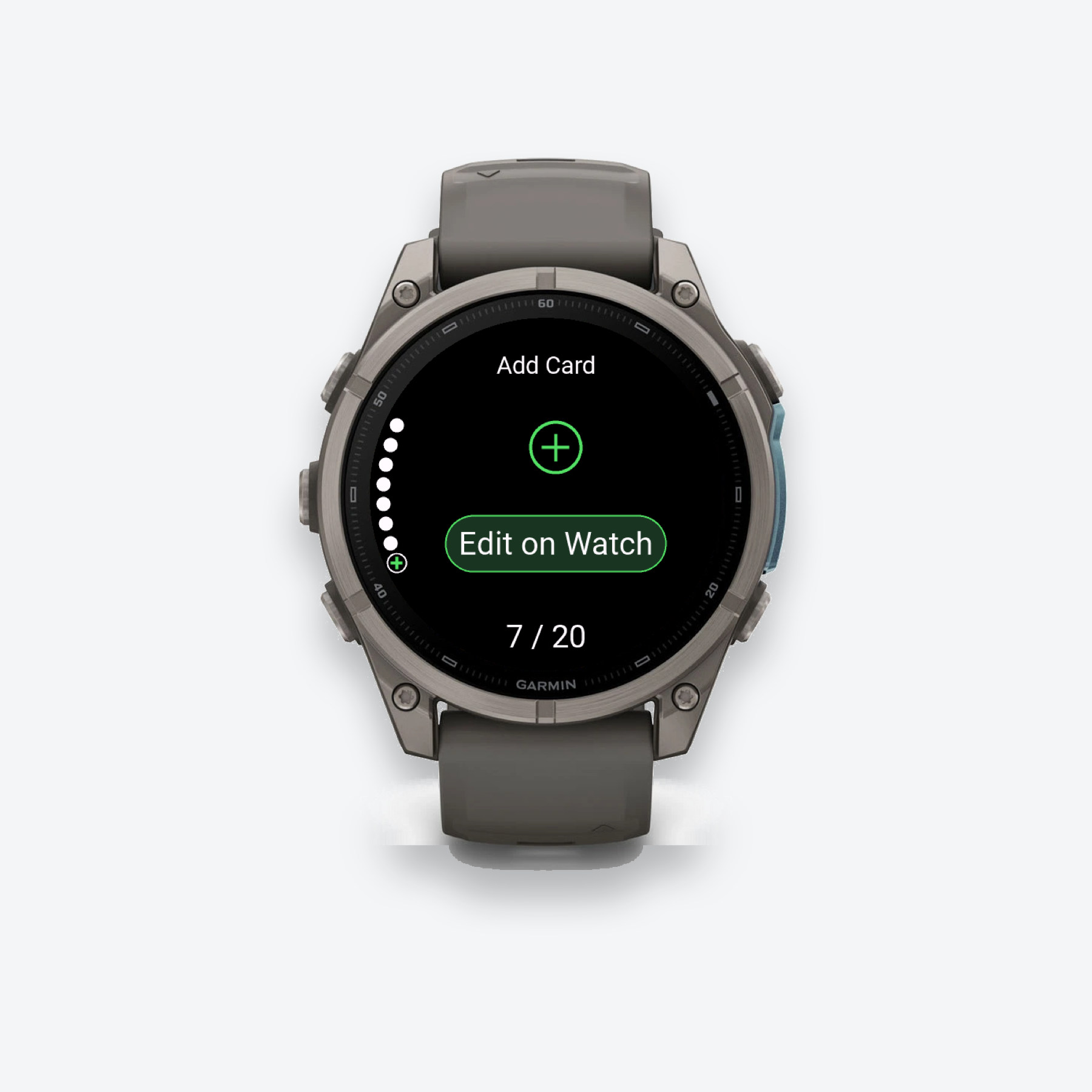
  1. Scroll to the green + after your last card and open the editor.
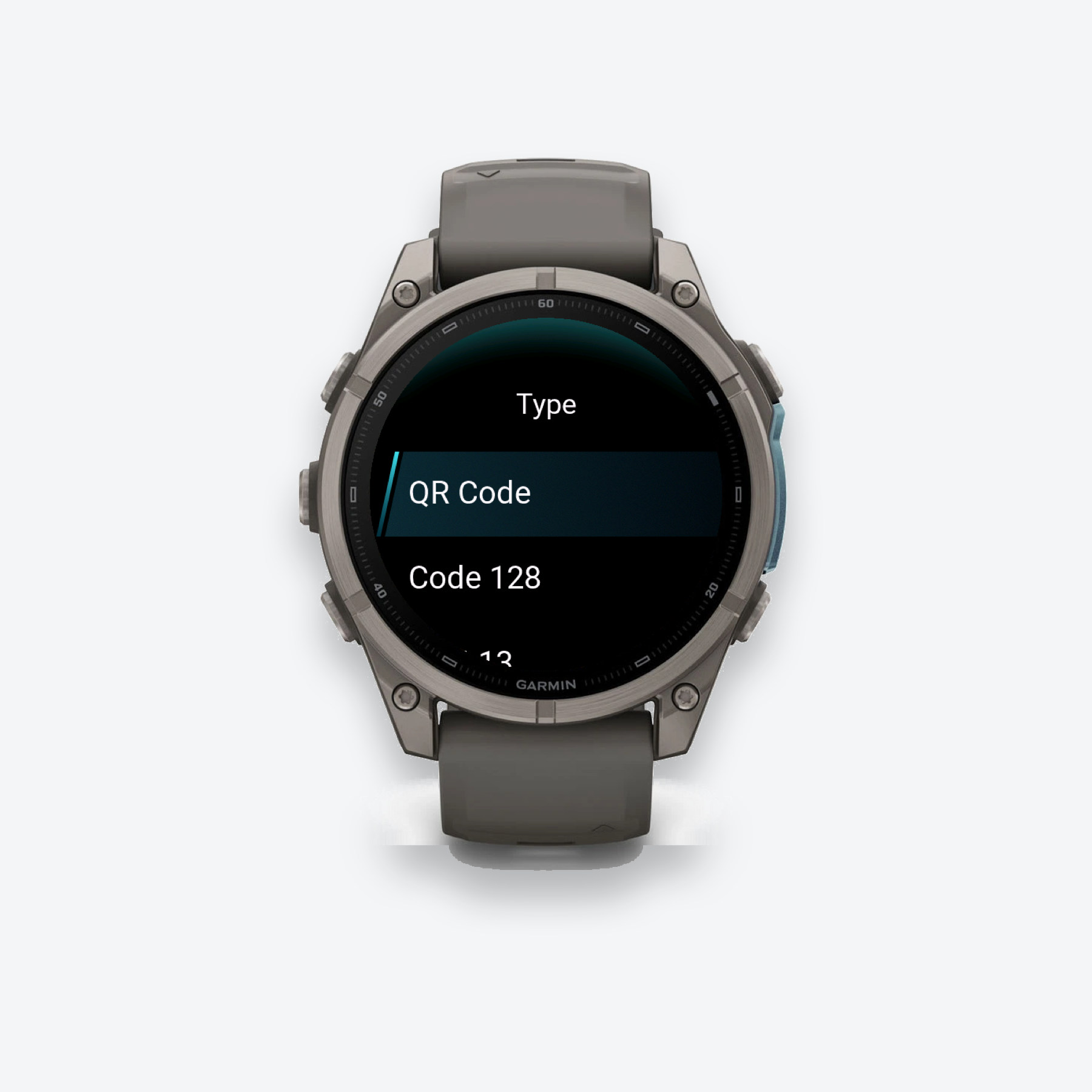
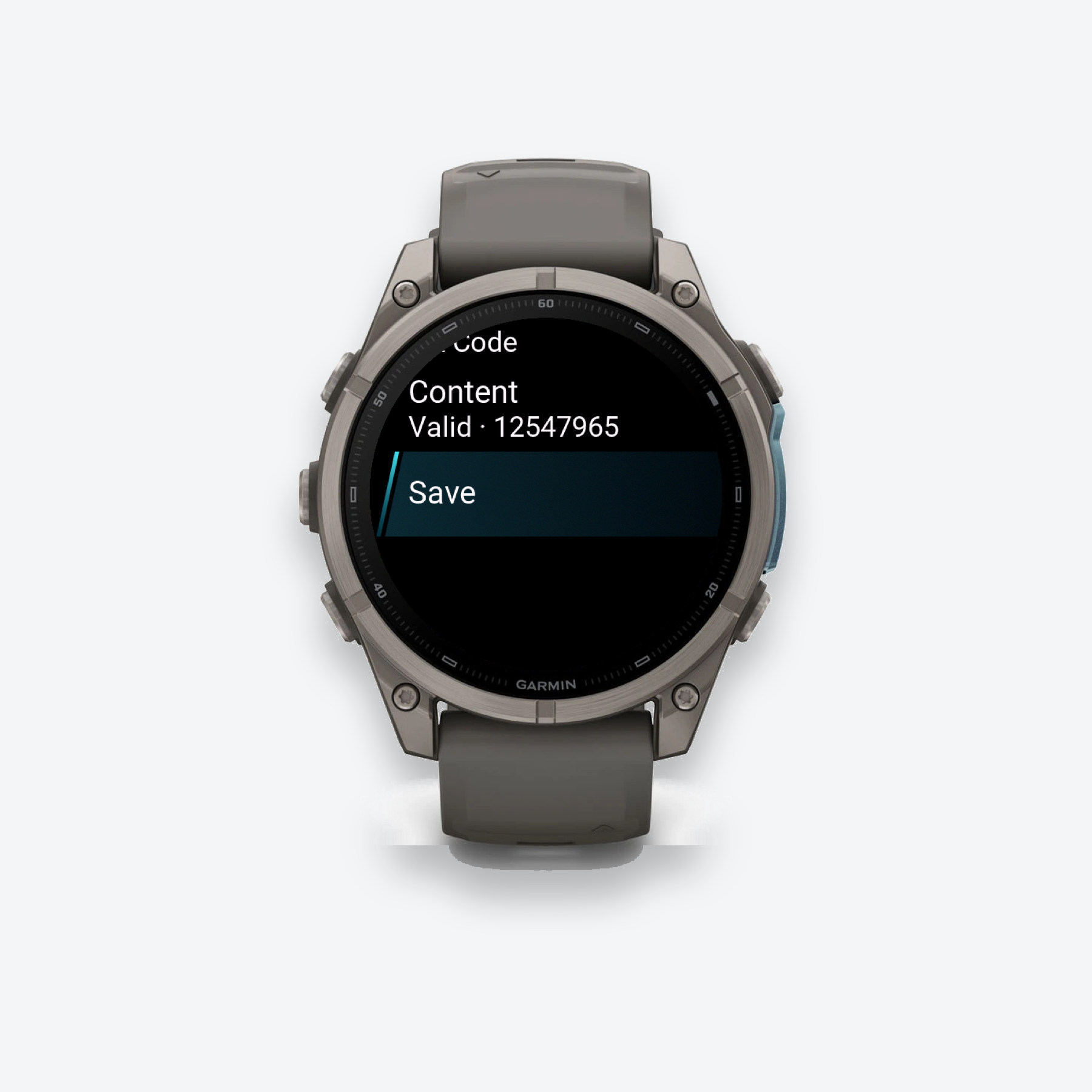
  2. Name your card, choose its type, and enter its content. The editor checks whether the content is valid.
  3. Select Save. Your card is ready to display offline. Use the card list to edit it later.

Text entry depends on your watch. On-watch editing is available with Gallery Pro on devices that support text input. You can also delete cards from the list, with confirmation.

Need the original QR code content?

Scan a QR code with your camera or choose an image. Copy the result into Connect IQ settings. You can also generate a QR code and download it.

Open QR Tools

THREE APPS. YOUR CHOICE.

Choose your card wallet.

Prefer scanning and organizing on your phone? Start with WristPass.

A SIMPLE START

QRCode Gallery Free

Try the watch experience.

  • Up to 2 cards
  • Add & edit cards in Connect IQ settings
  • Offline viewing on your watch
Try Gallery Free

Download on Connect IQ

MORE ROOM ON YOUR WATCH

QRCode Gallery Pro

Keep more. Edit on your wrist.

  • Up to 20 QR codes and barcodes
  • Add & edit cards in Connect IQ settings
  • Edit on your watch, on supported devices
  • Offline viewing on your watch
Get Gallery Pro

Download on Connect IQ

WristPass is a separate app from QRCode Gallery Pro. Choose the matching app for your watch. Check each listing for current pricing and device compatibility.

GOOD TO KNOW

A few details.

Setup, syncing, and everyday use.

Is WristPass part of QRCode Gallery Pro?

No. WristPass and QRCode Gallery Pro are separate apps with their own downloads. Gallery is for manually entering and storing cards on your watch. WristPass has an iOS or Android app for scanning and organizing cards, then syncing them to the WristPass watch app through Garmin Connect. Visit wristpass.li2niu.com for its matching phone and watch apps.

Does QRCode Gallery work without my phone?

Yes. Once your cards are saved on your watch, both Gallery versions can display them without your phone or an internet connection. Gallery Pro also caches QR codes locally for faster repeat viewing.

Why aren’t my Connect IQ edits appearing on my watch?

Saving in Connect IQ still requires the settings to sync from your phone to your watch. Garmin connection issues can interrupt that step. Check that your watch is connected and try saving again. With Gallery Pro on a supported watch, you can also add or edit the card directly on your watch without phone sync.

Which code types does Gallery Pro support?

QR Code, Code 128, EAN-13, UPC-A, Code 39, Code 93, EAN-8, and UPC-E. Each type has its own content rules. The Gallery Pro editor checks your content before you save.

What content do I enter in QRCode Gallery?

Enter the original text, URL, or number encoded in your card, then choose its matching code type. Use our free QR Tools to read a QR code from a photo or your camera, then copy its content into Connect IQ settings and select QR Code. For an EAN-13 barcode in Gallery Pro, enter the complete printed number. For scanning, organizing, and syncing cards together in a phone app, explore WristPass.

Can I edit Gallery Pro cards on any Garmin watch?

On-watch text entry depends on the controls and text input supported by your device. Both Gallery versions also let you add or update card details through their settings in Garmin Connect IQ on your phone. Visit each store listing to check compatible devices.

Will QRCode Gallery replace every kind of card?

QRCode Gallery displays codes using the content you provide. It works with codes that keep the same content. NFC cards, contactless payments, and codes that change automatically use different systems.